Your Aerix X25 router should come preconfigured and ready to use right away. However, should you need to update the APN settings, we've created this step-by-step guide to help get you set up.
Step 1
Ensure that your router is turned on, and connect to it using a device, such as a laptop, phone or tablet (we highly recommend doing this on a laptop or desktop computer)
Step 2
On the same device, open up a web browser, such as Safari, Microsoft Edge or Google Chrome. In the address bar along the top of the page, type the following IP Address:
192.168.0.1
Then, press enter to search.
Important Note
Step 2 must be done in a web browser - if you use a search engine (such as the Google app) then this will not work.
Step 3
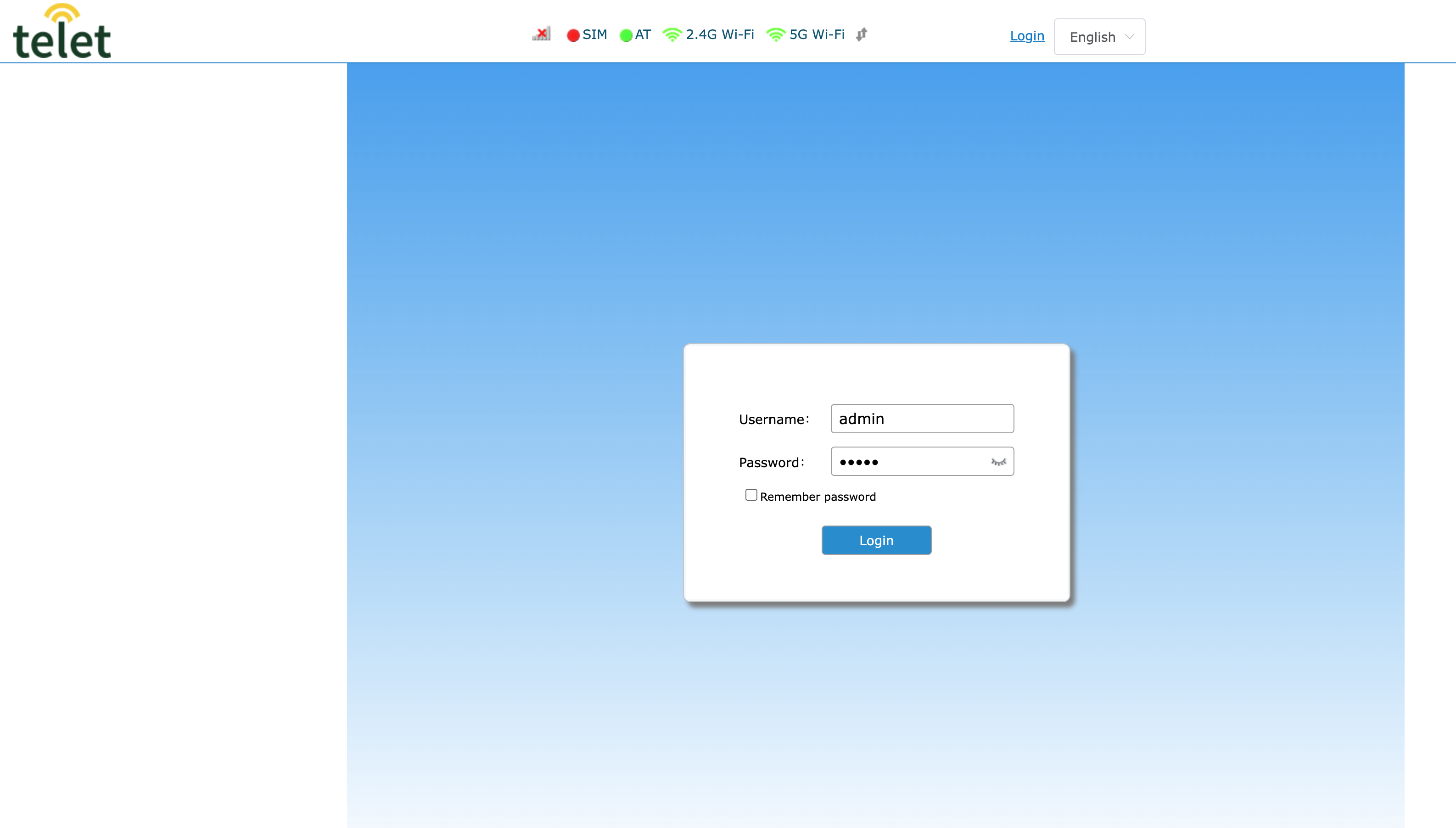
You should be presented with a login page. Enter the following info:
Username - admin
Password - admin
Then, press Login
Step 4
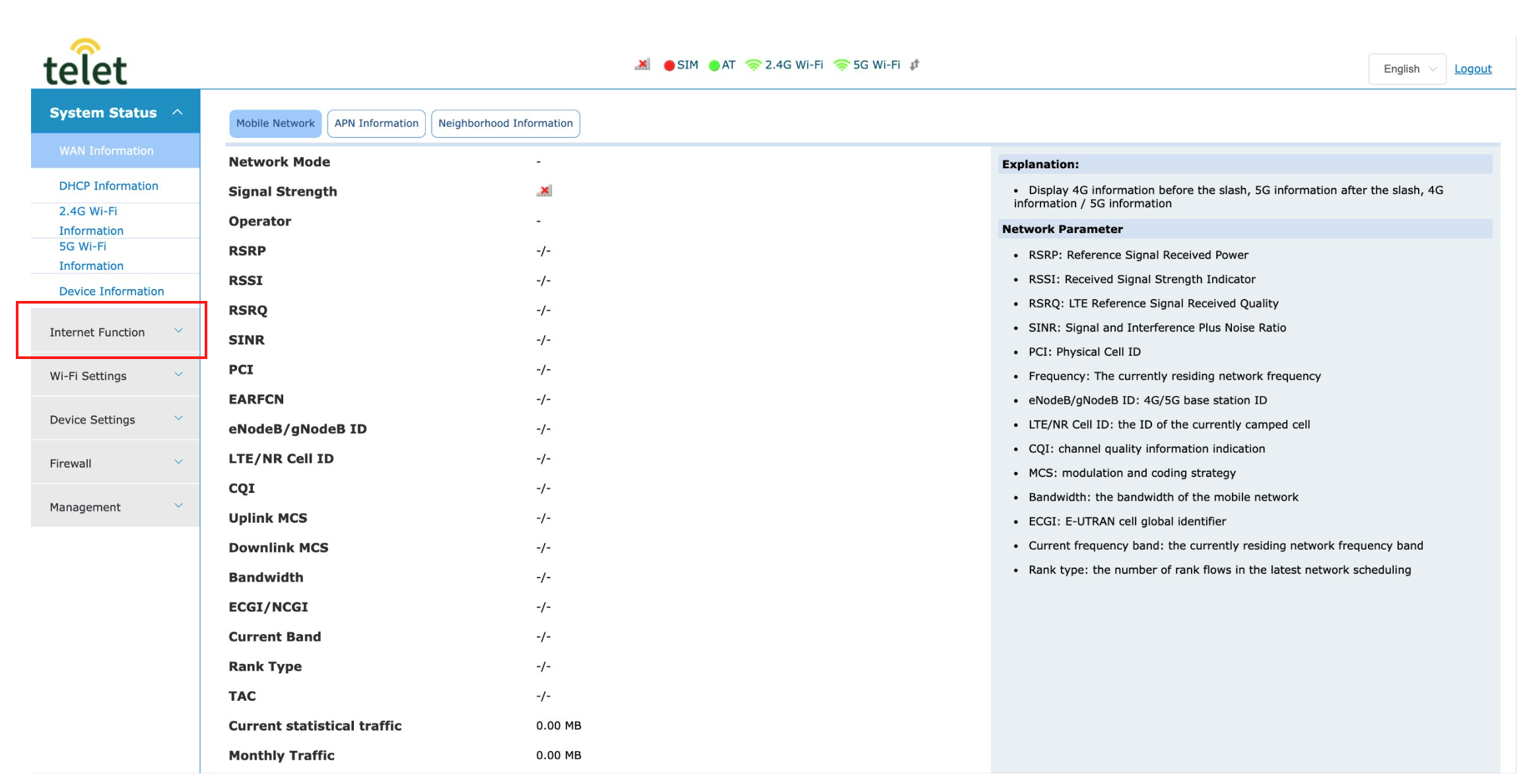
From the dashboard, select Internet Function
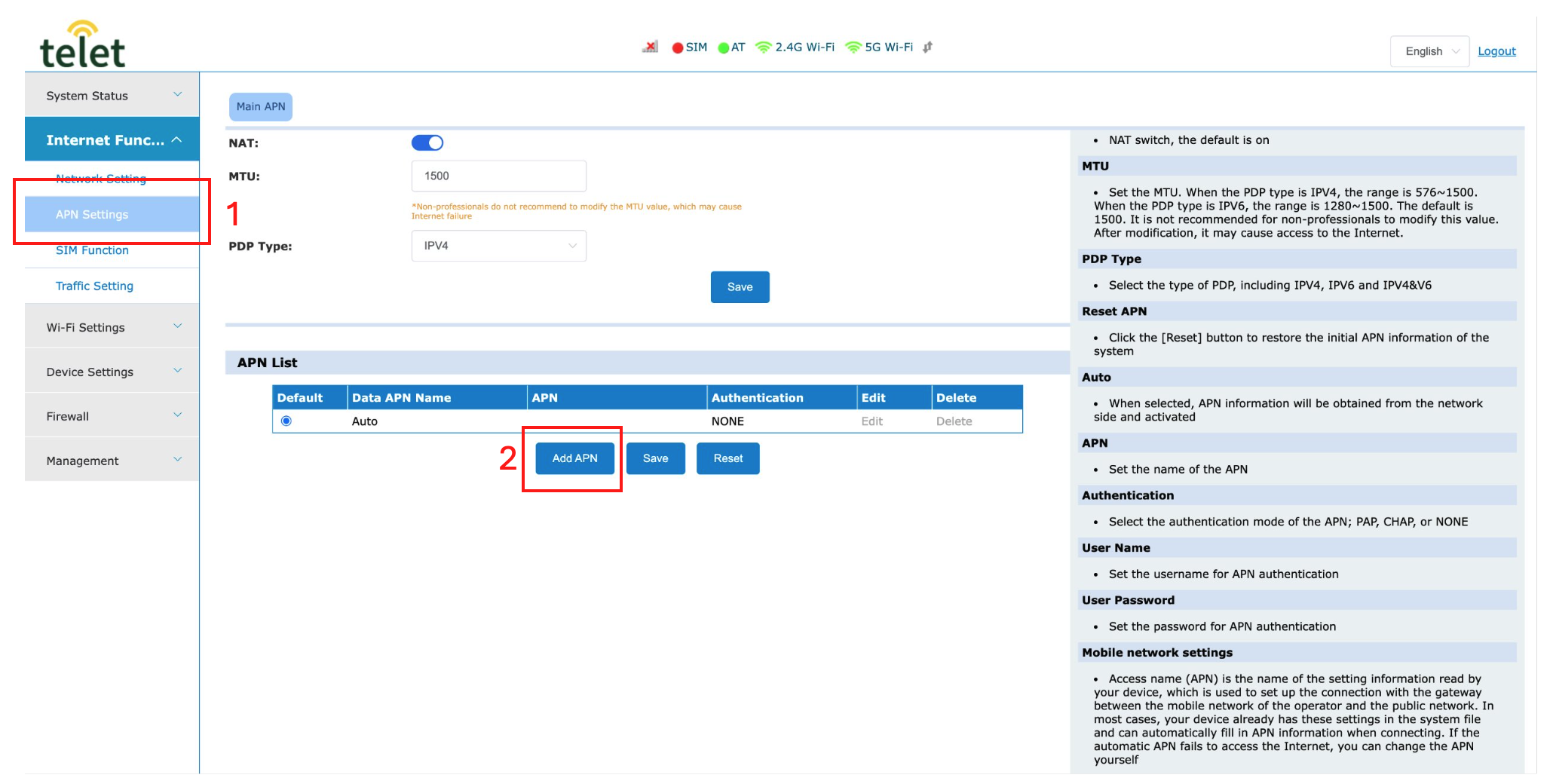
Then, select APN Settings, and Add APN
Step 5
Enter the following info:
Data APN Name - internet
APN - internet
Authentication - None
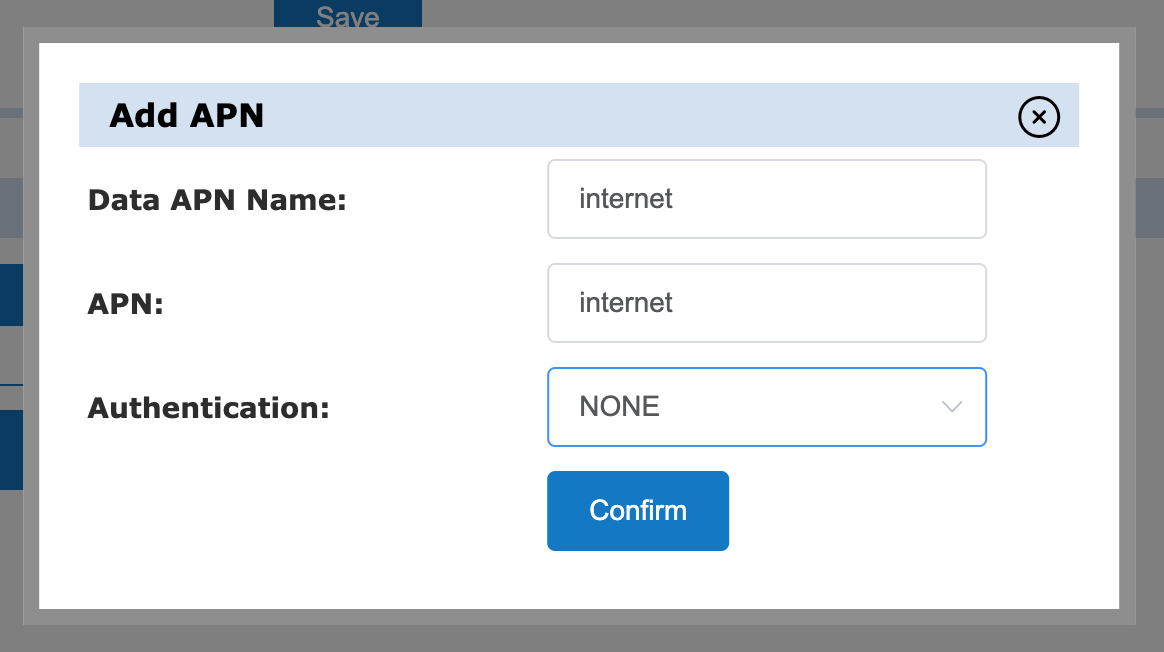
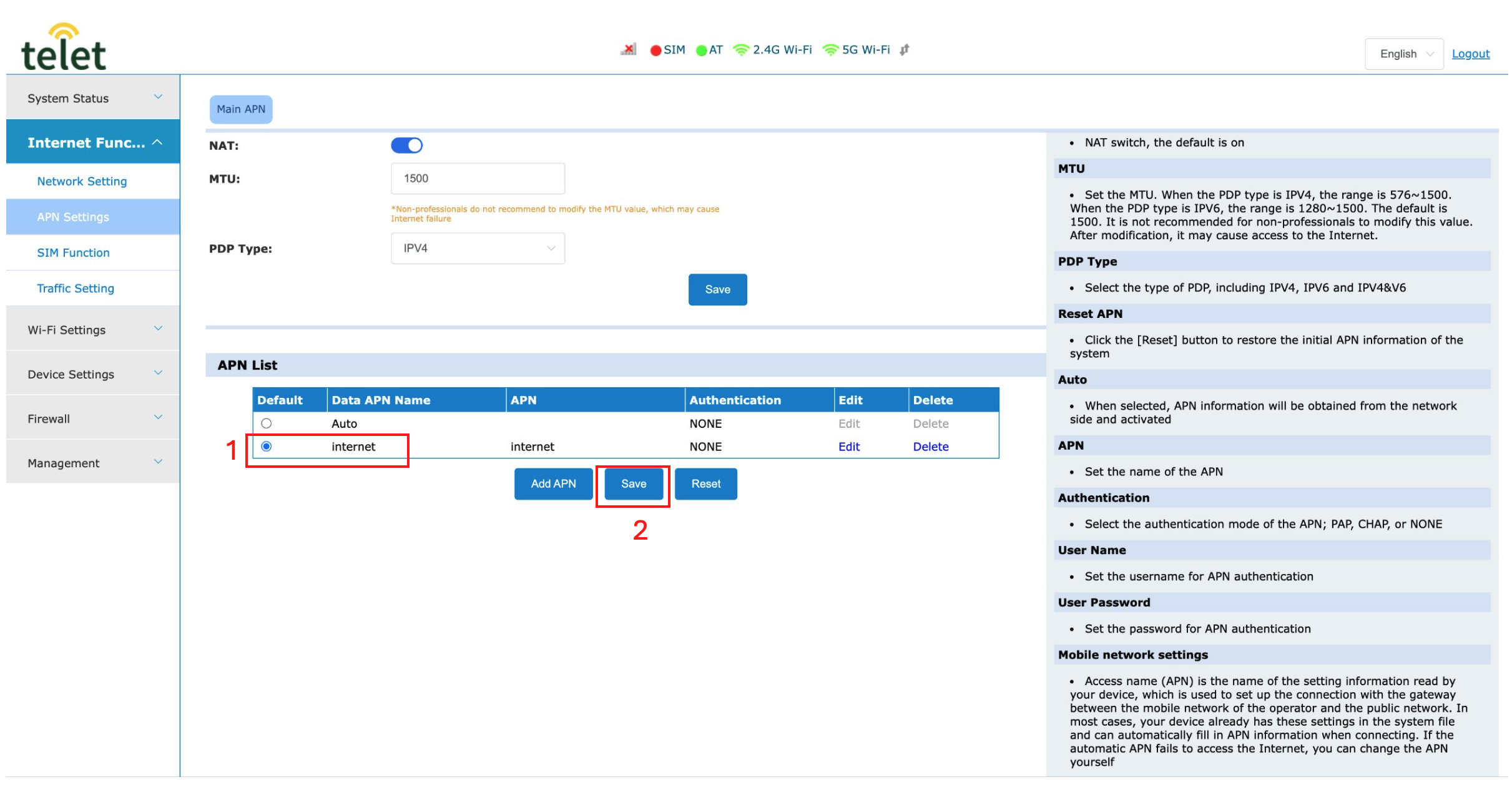
Then, press Confirm
Step 6
Select the newly created internet APN profile, then press Save